Settings
Customize LocalChat's behavior, appearance, and AI response style.
Accessing settings
Open Settings by:
- Clicking Settings in the sidebar
- Pressing Cmd + , (comma)
Settings are organized into six categories: Models, Response Style, Cache & History, Appearance, Data & Export, and License.
Models
Manage your downloaded AI models and download new ones.
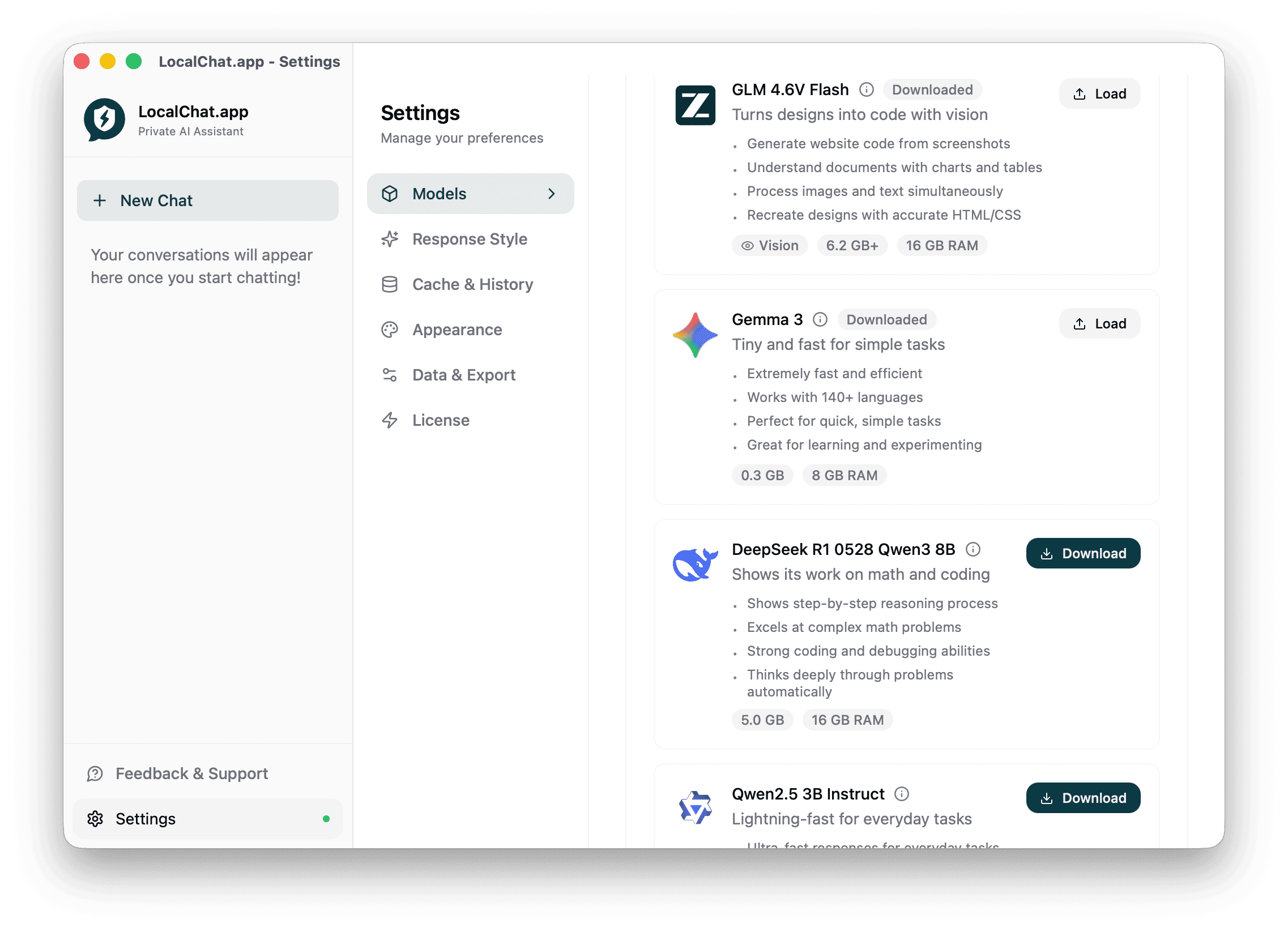
Each model shows:
- Name and description - What the model is best for
- Status - Downloaded or available to download
- Size - Download size and RAM requirements
- Vision badge - If the model can process images
Actions
- Download - Get a new model (shown for models not yet downloaded)
- Load - Switch to this model for your conversations
See Model management for more details on choosing and using models.
Response style
Control how the AI generates responses. These settings affect the quality, length, and creativity of answers.
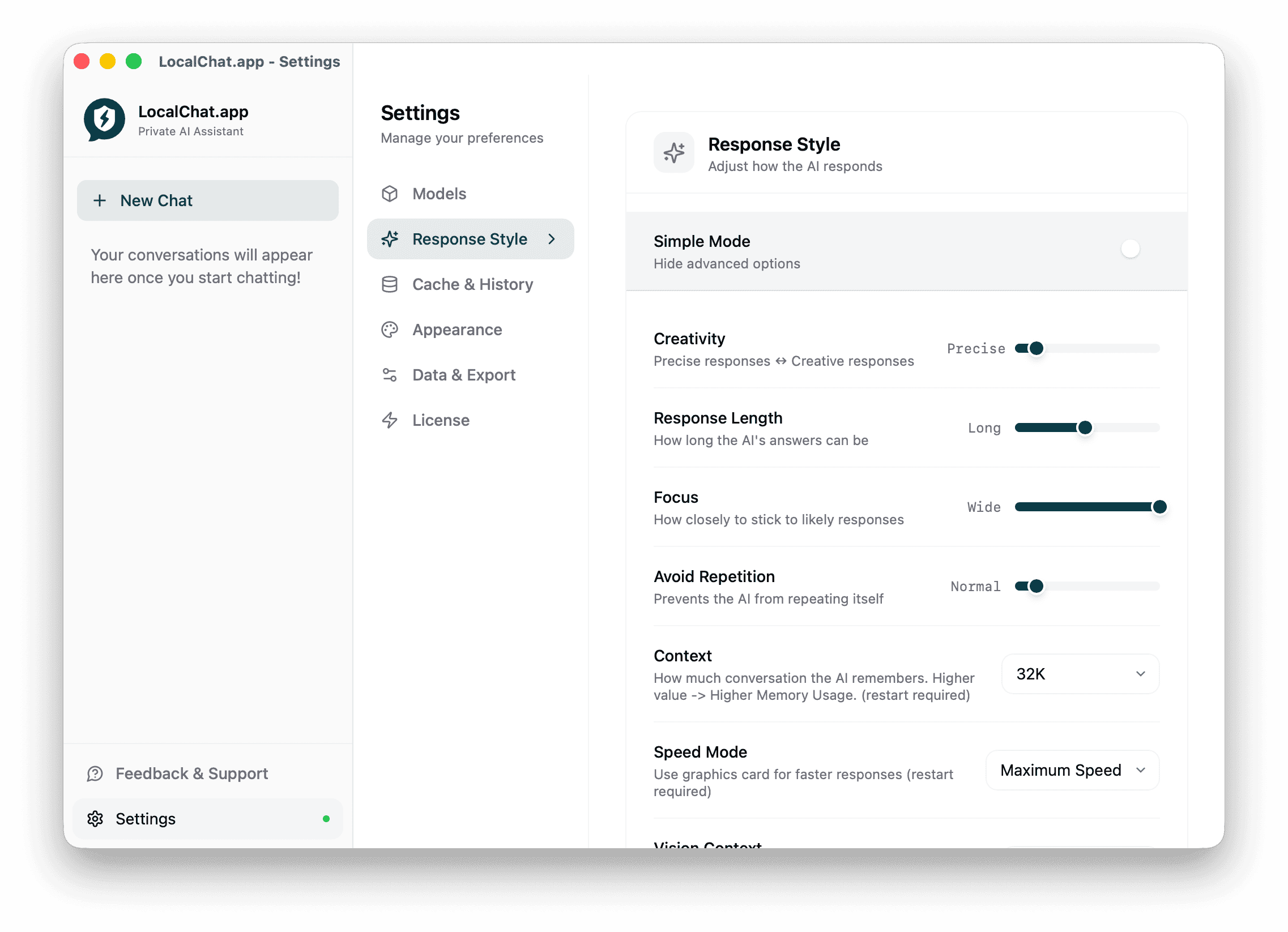
Simple mode
Toggle on to hide advanced options. When off, you can fine-tune the following settings.
Creativity
Controls how predictable or creative responses are.
- Precise - Stick closely to likely answers (good for factual questions)
- Creative - More varied and imaginative responses (good for brainstorming)
Default: Precise
Response length
How long the AI's answers can be.
- Short - Brief, concise answers
- Long - Detailed explanations
Default: Long
Focus
How closely the AI sticks to the most likely responses.
- Narrow - More focused, predictable output
- Wide - More diverse, exploratory responses
Default: Wide
Avoid repetition
Prevents the AI from repeating itself in responses.
- Low - May repeat phrases
- Normal - Balanced
- High - Strongly avoids repetition
Default: Normal
Context
How much conversation the AI remembers. Higher values use more memory.
Options: 2K, 4K, 8K, 16K, 32K tokens
Default: 32K
Note: Changing context size requires restarting the model.
Speed mode
Use your Mac's GPU for faster responses.
Options:
- Maximum Speed - Full GPU acceleration
- Balanced - Mix of speed and power efficiency
- Power Saver - Reduce GPU usage to save battery
Default: Maximum Speed
Cache & history
Manage conversation memory and storage for better performance.
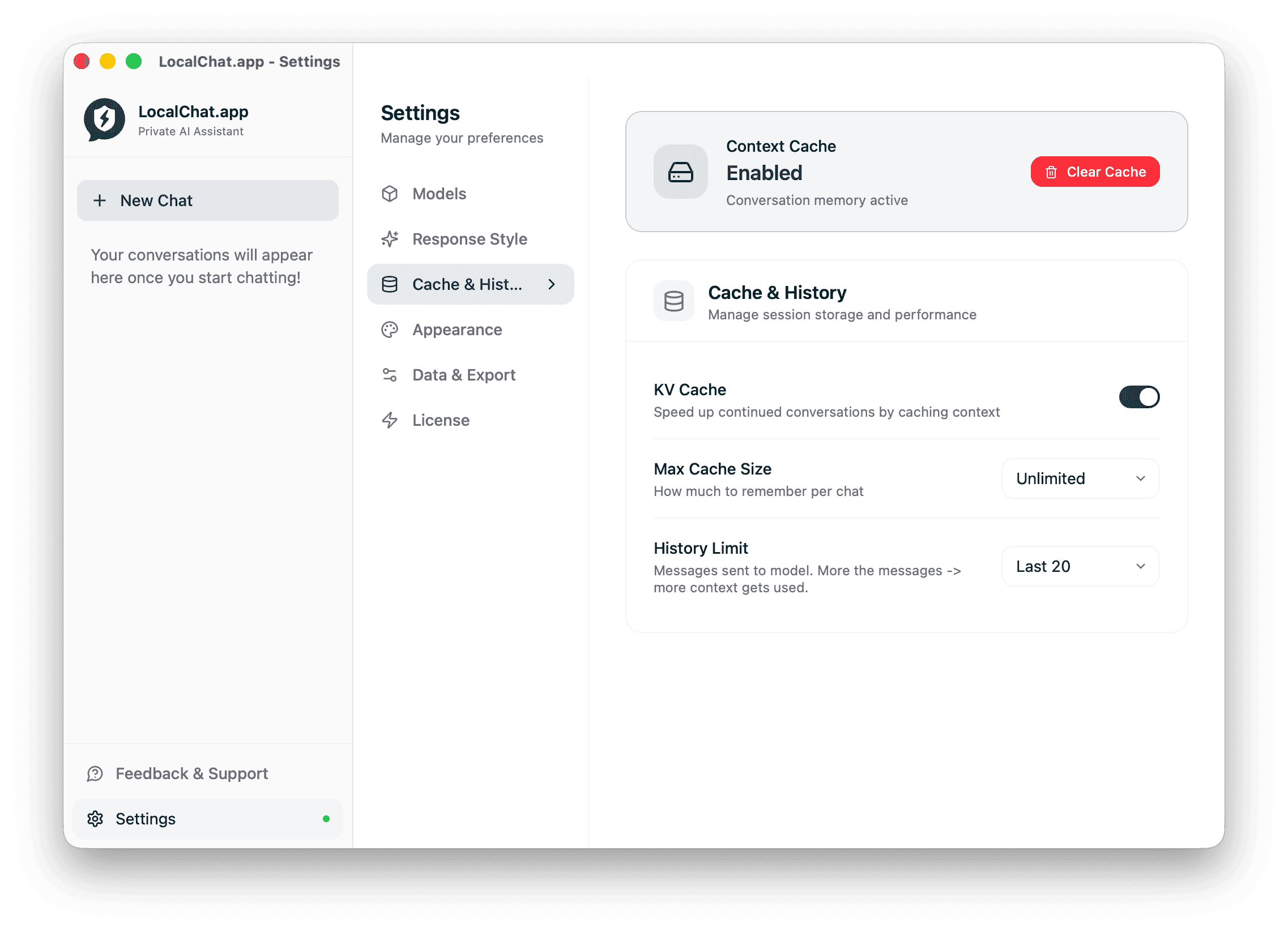
Context cache
Shows whether conversation caching is active. Caching speeds up continued conversations by storing context.
- Clear Cache - Remove cached data to free memory
KV cache
Speed up continued conversations by caching context between messages.
Default: On
Max cache size
How much memory to allocate for caching.
Options: 512MB, 1GB, 2GB, 4GB, Unlimited
Default: Unlimited
History limit
Number of messages sent to the model for context. More messages mean more context but use more memory.
Options: Last 5, Last 10, Last 20, Last 50, All
Default: Last 20
Appearance
Customize the look of LocalChat.
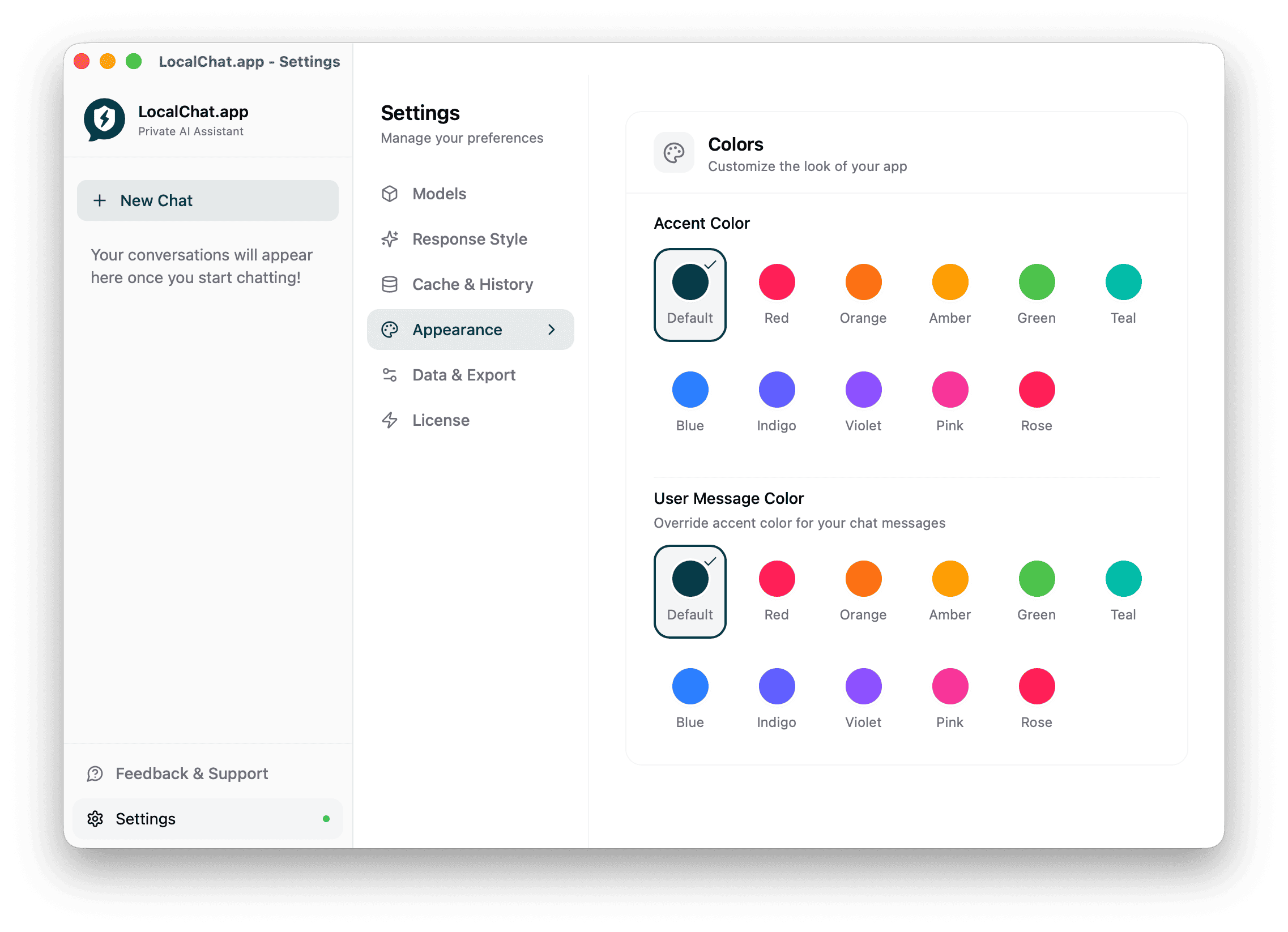
Accent color
The main color used throughout the app for buttons, highlights, and UI elements.
Options: Default (dark teal), Red, Orange, Amber, Green, Teal, Blue, Indigo, Violet, Pink, Rose
Default: Default
User message color
Override the accent color specifically for your chat messages.
Options: Same as accent color options
Default: Default (uses accent color)
Data & export
Manage your conversation data and privacy.
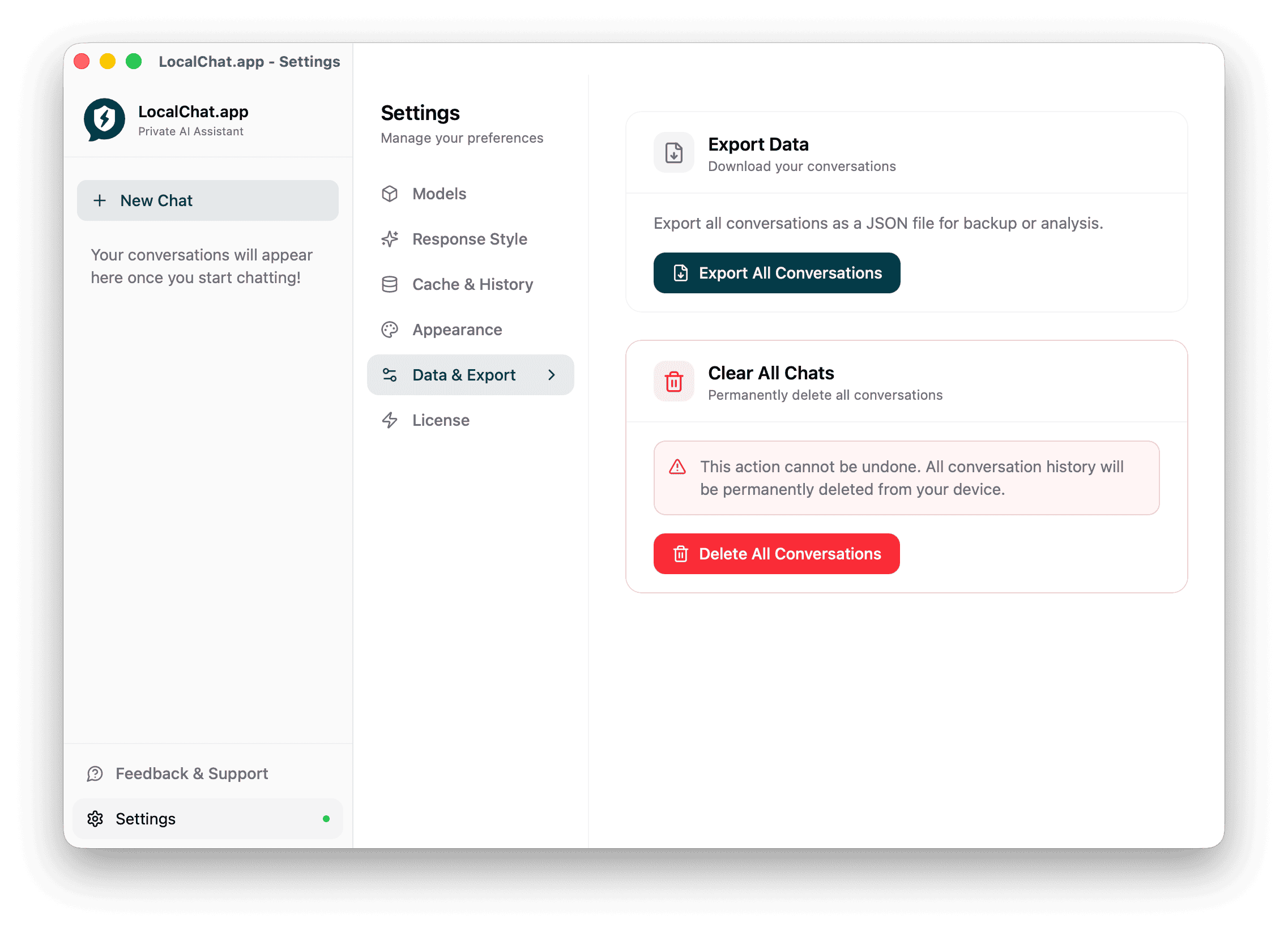
Export data
Download all your conversations as a JSON file for backup or analysis.
- Click Export All Conversations
- Choose where to save the file
- The JSON file contains all your chat history
Clear all chats
Permanently delete all conversations from LocalChat.
Warning: This action cannot be undone. All conversation history will be permanently deleted from your device.
- Click Delete All Conversations
- Confirm the deletion when prompted
License
Manage your LocalChat license.
- View your current license status
- Activate a new license key
- Check license expiration (if applicable)
Related pages
- Models - Learn about managing AI models
- Quick start - Get started with LocalChat
- Overview - Learn what LocalChat can do