Screenshot to code
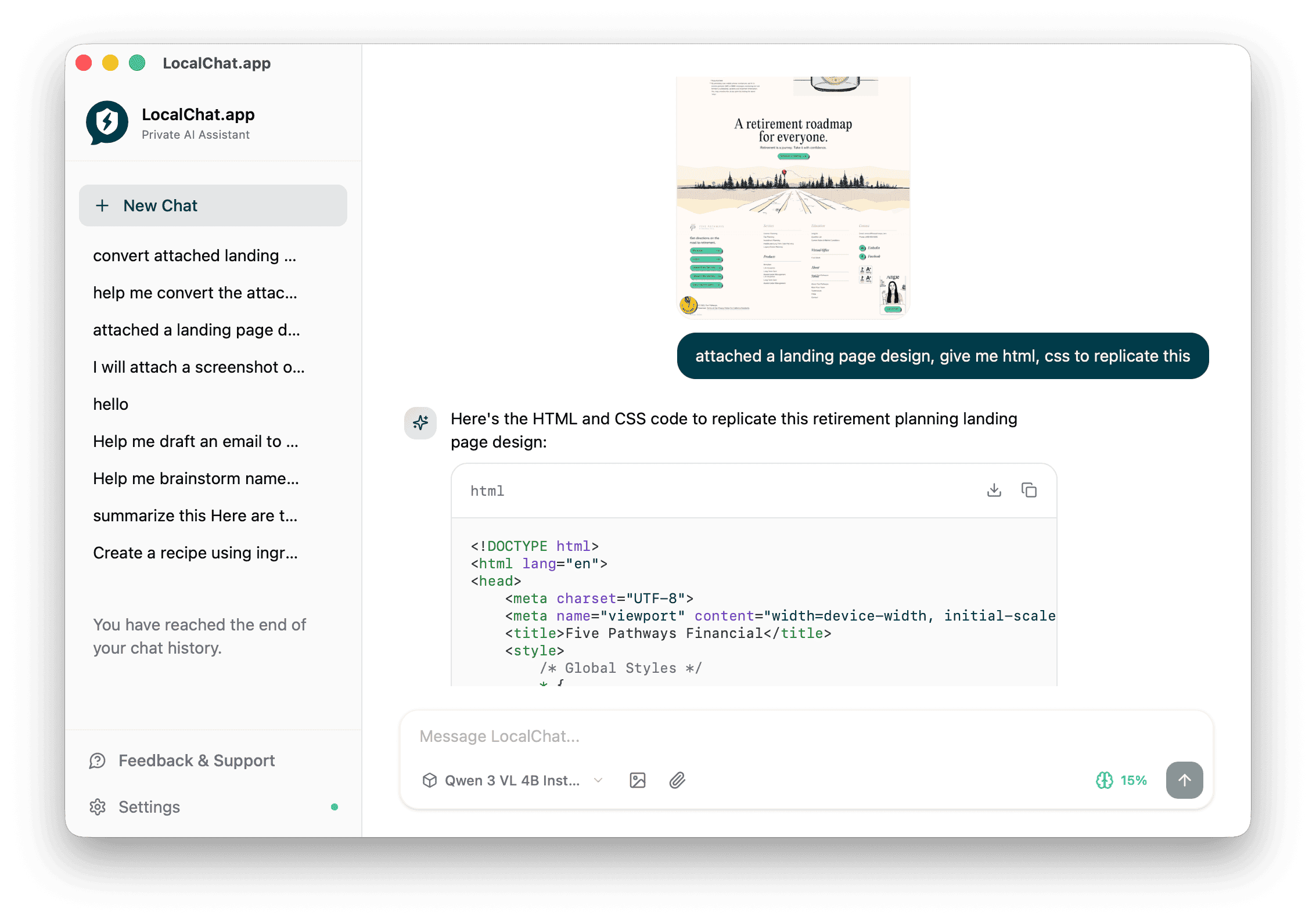
LocalChat can convert website screenshots and design mockups into working HTML and CSS code. Use vision-enabled models to turn visual designs into code you can use.
Requirements
You need a vision model that's good at code generation:
- GLM 4.6V Flash - Designed for turning designs into code with vision
- Qwen 3 VL - Good at both vision and code tasks
Download these from Settings > Models.
How to convert a design
- Make sure a vision model is loaded
- Take a screenshot of the design you want to replicate
- Attach the image to your chat
- Ask for the code you need
Example prompts
- "Give me HTML and CSS to replicate this design"
- "Convert this screenshot to a responsive webpage"
- "Create the HTML/CSS for this landing page"
- "Build this layout using flexbox"
What it can do
Landing pages
Convert marketing page designs into working HTML:
- Hero sections
- Feature grids
- Pricing tables
- Call-to-action sections
UI components
Turn component screenshots into reusable code:
- Navigation menus
- Card layouts
- Form designs
- Buttons and badges
Full page layouts
Recreate entire page structures:
- Headers and footers
- Sidebar layouts
- Grid-based designs
- Responsive layouts
Tips for better results
Use clear screenshots
- Capture at high resolution
- Include the full component or section
- Crop out unnecessary elements
Be specific about requirements
- "Use Tailwind CSS classes"
- "Make it responsive for mobile"
- "Use semantic HTML5 elements"
- "Include hover states"
Iterate on the output
- Ask for modifications: "Make the button larger"
- Request alternatives: "Try a different color scheme"
- Add features: "Add a dark mode version"
Provide context
- Mention the framework if you have a preference
- Specify if you need vanilla CSS or a framework
- Note any constraints (no JavaScript, CSS-only, etc.)
Limitations
Keep in mind:
- Results work best for static layouts
- Complex animations may need manual tweaking
- Very detailed designs might need multiple iterations
- Interactive elements may require additional JavaScript
Workflow tips
- Start with sections - Convert one section at a time for better accuracy
- Review and refine - Test the output and ask for adjustments
- Combine pieces - Build up your page from converted components
- Add interactivity - Enhance with JavaScript after the base is ready
Related pages
- Image analysis - Learn more about vision features
- Models - Download vision models for code generation