Installation
Learn how to install LocalChat on your Mac. The process takes just a few minutes.
System requirements
Before installing, make sure your Mac meets these requirements:
- macOS: 13.0 (Ventura) or later
- Processor: Apple Silicon (M1, M2, M3, or M4) recommended
- RAM: 8GB minimum, 16GB+ recommended for larger models
- Storage: At least 10GB free space (models range from 2-8GB each)
Note: LocalChat runs on Intel Macs too, but performance is better on Apple Silicon.
Download
- Go to the download page
- Click Download for Mac
- The DMG file downloads to your Downloads folder
Install
- Open the downloaded DMG file
- Drag the LocalChat icon to your Applications folder
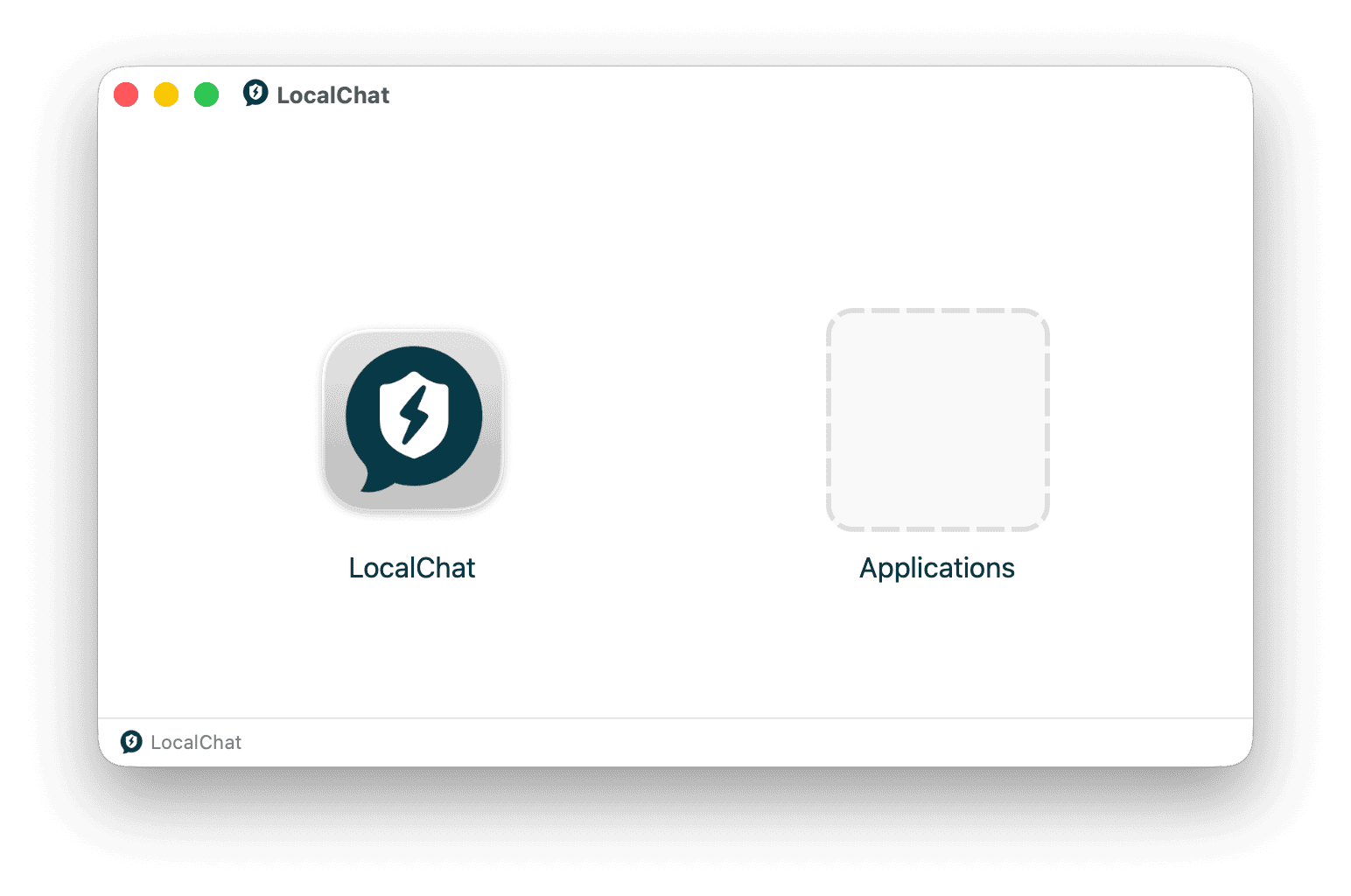
- Eject the DMG by right-clicking it in Finder and selecting Eject
- Open LocalChat from your Applications folder
If you see a security warning
When opening LocalChat for the first time, macOS may show a warning because the app was downloaded from the internet.
- Click Open in the dialog
- If prompted, enter your Mac password to confirm
First launch
After opening LocalChat, the app guides you through initial setup. This includes:
- Checking your system capabilities
- Choosing an AI model
- Downloading the model to your Mac
See the Quick start guide for a walkthrough of the setup process.
Troubleshooting
LocalChat won't open
If you see "LocalChat can't be opened because Apple cannot check it for malicious software":
- Open System Settings > Privacy & Security
- Scroll down to find the message about LocalChat
- Click Open Anyway
- Enter your password if prompted
Download fails
If the DMG download fails or is corrupted:
- Delete the partial download from your Downloads folder
- Clear your browser cache
- Try downloading again
- If the issue continues, try a different browser
For other issues, see the Troubleshooting page.
Updating LocalChat
LocalChat checks for updates and lets you install them from inside the app. Updates don't touch your conversations, models, or settings.
Your license includes one year of updates. The app keeps working after that; you just stop receiving new versions unless you renew.
Uninstalling
To remove LocalChat:
- Quit the app
- Drag LocalChat from your Applications folder to the Trash
Downloaded models and conversation data are stored outside the app bundle, so deleting the app alone doesn't remove them. To reclaim the space from models, delete them in Settings > Models before uninstalling.
Next steps
- Quick start - Complete the setup and start chatting
- Settings - Configure LocalChat to your preferences