Chat with Documents
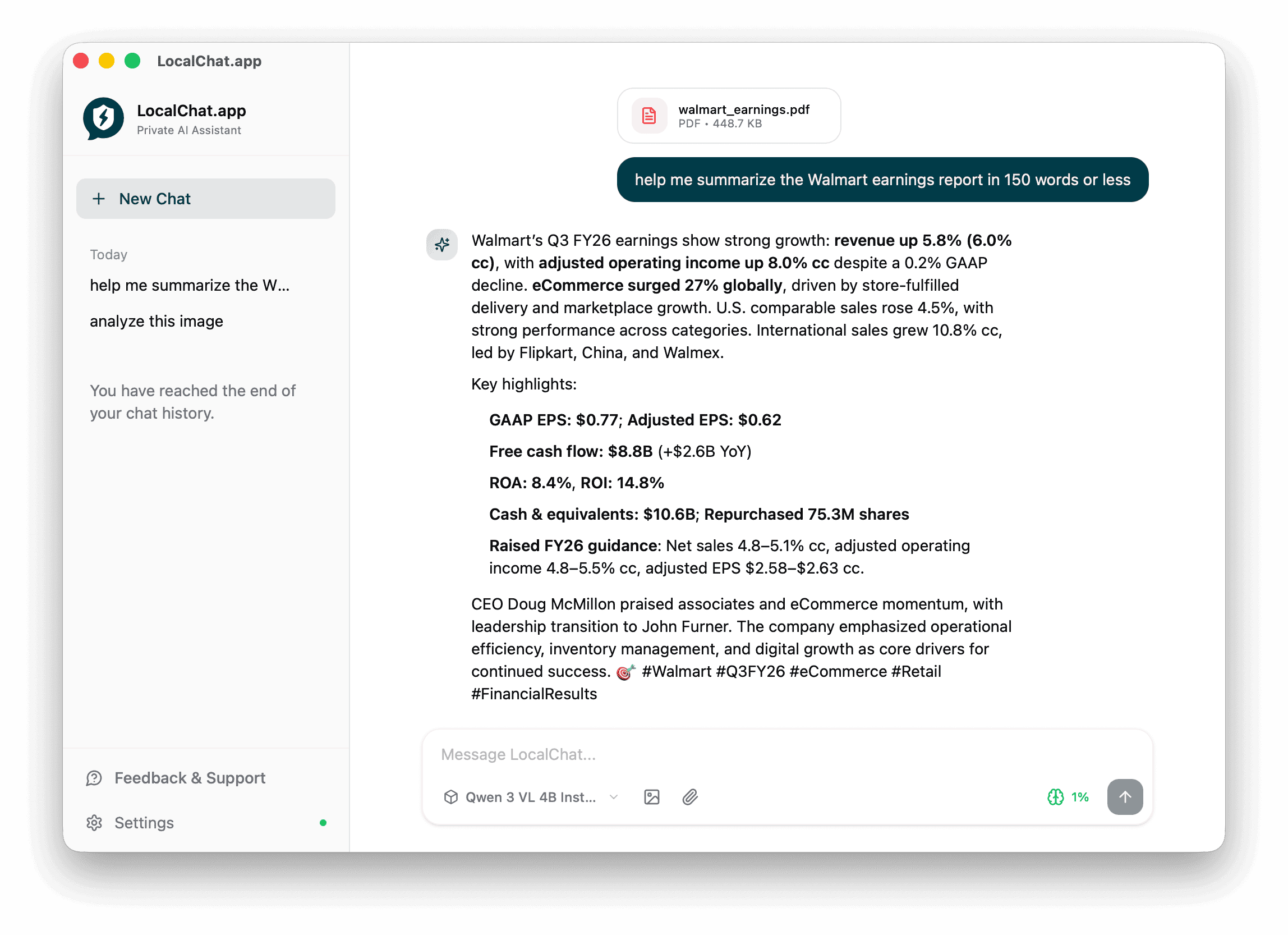
LocalChat can read and analyze PDF documents and text files. Summarize reports, extract key information, or ask questions about your documents - all processed privately on your Mac.
Supported file types
- PDF - Reports, papers, presentations, ebooks
- CSV - Exported data, transaction lists, spreadsheet exports
- XLSX - Excel spreadsheets
- MD - Markdown files
- TXT - Plain text files
LocalChat reads the whole file, not a pasted excerpt. Hand it a 200-page deposition or a full year of transactions and ask about any part of it.
How to analyze a document
- Start a new chat or continue an existing conversation
- Attach your document:
- Click the attachment icon in the chat input
- Drag and drop the file into the chat
- Type what you want to do with the document
- Press Enter to send
The AI reads the document and responds based on your request.
What you can do
Summarize documents
Get quick summaries of long documents:
- "Summarize this report in 150 words or less"
- "What are the key takeaways from this document?"
- "Give me a bullet-point summary"
Extract information
Pull specific data from documents:
- "What are the financial highlights?"
- "List all the dates mentioned"
- "Extract the contact information"
Answer questions
Ask questions about document content:
- "What does this report say about revenue growth?"
- "Who are the authors of this paper?"
- "What recommendations does the document make?"
Analyze and compare
Get deeper insights:
- "What are the strengths and weaknesses mentioned?"
- "Compare the Q1 and Q2 results"
- "Identify any risks discussed in this report"
Work with spreadsheets
Ask about CSV and XLSX data directly:
- "What's the total of the Amount column?"
- "Which clients appear more than once in this export?"
- "Summarize spending by category"
Example use cases
Legal documents
- Review contracts for key terms and obligations
- Ask clause-level questions about depositions and discovery
- Compare two versions of an agreement
Business documents
- Summarize meeting notes
- Extract action items from reports
- Brief yourself on client documents before a call
Financial documents
- Skim tax returns, P&Ls, and engagement letters
- Extract key metrics from earnings reports
- Compare year-over-year data
Research papers
- Get paper abstracts and summaries
- Extract methodology details
- Identify key findings
Working with the same set of files repeatedly? Put them in a project so they stay available across conversations.
Tips for better results
- Be specific - Tell the AI exactly what you're looking for
- Set constraints - Specify word limits or format preferences
- Ask follow-ups - Dig deeper with additional questions
- Use larger models - Complex documents benefit from more capable models
File size limits
LocalChat can process documents of various sizes, but very large files may take longer or require more memory. For best results:
- Keep PDFs under 50 pages for quick processing
- Split large documents if needed
- Use a model with higher context length for longer documents
Privacy
All document processing happens locally on your Mac. Your files are never uploaded to external servers. The document content stays on your device.
Related pages
- Image analysis - Analyze images and screenshots
- Models - Choose the right model for your needs
- Settings - Configure context length for longer documents