Models
LocalChat ships with a curated catalog of 25+ models, plus support for any GGUF model on Hugging Face. You can download multiple models and switch between them based on what you're working on.
Model gallery
Access the model gallery from Settings > Models to browse and download available models.
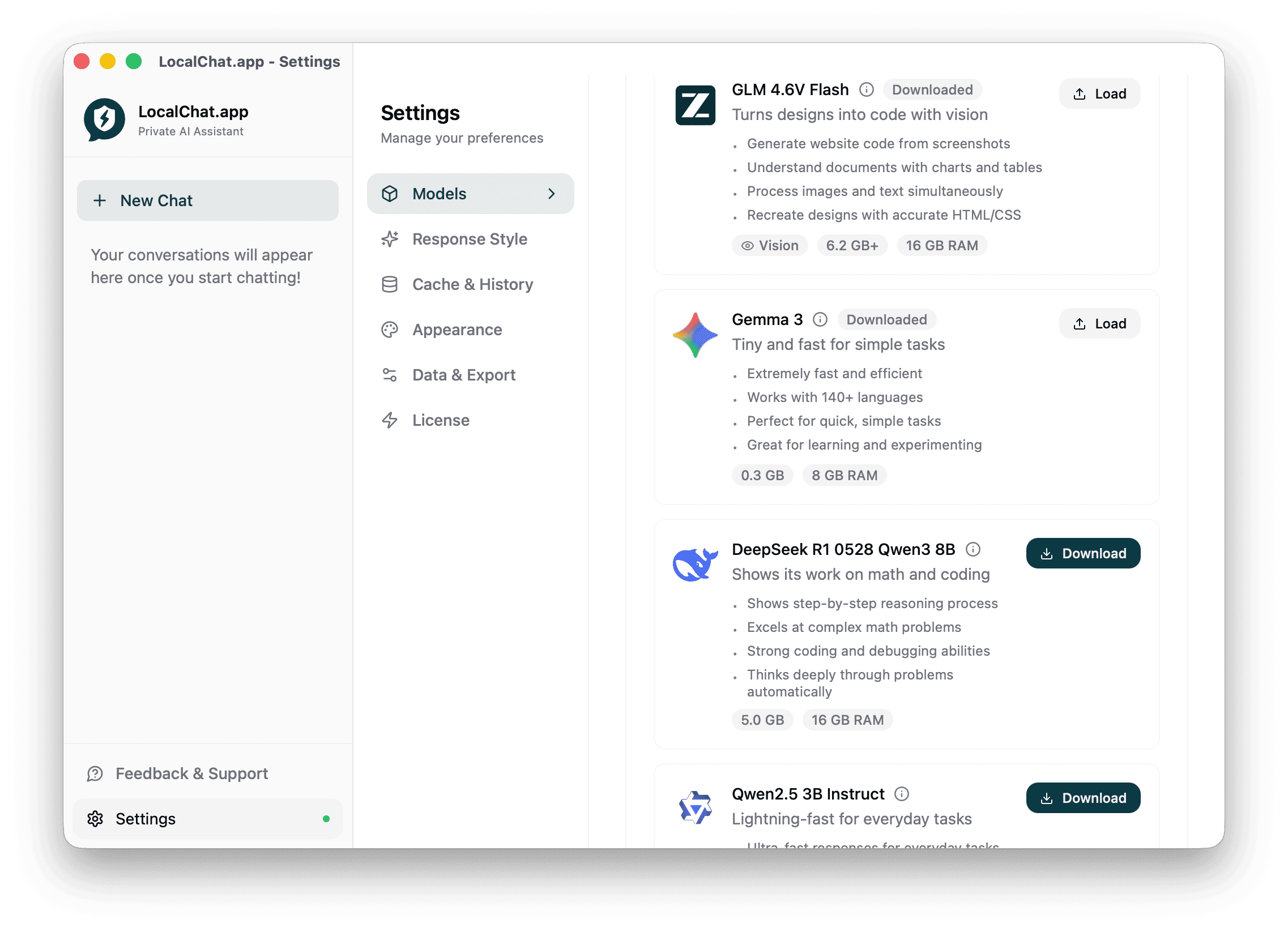
Each model card shows:
- Name - The model identifier
- Description - What the model does best
- Vision badge - Indicates the model can process images
- Size - Download size (e.g., 0.3 GB, 5.0 GB, 6.2 GB)
- RAM - Memory required to run the model (e.g., 8 GB, 16 GB)
Downloading models
To download a new model:
- Open Settings > Models
- Find the model you want
- Click Download
- Wait for the download to complete
Tip: Start with smaller models if you're not sure which to choose. Gemma 3 at 0.3 GB is a good starting point for simple tasks.
Model recommendations
| Model | Best for | Size | RAM |
|---|---|---|---|
| Gemma 3 | Quick, simple tasks | 0.3 GB | 8 GB |
| Qwen2.5 3B Instruct | Everyday tasks | ~2 GB | 8 GB |
| DeepSeek R1 | Math and coding | 5.0 GB | 16 GB |
| GLM 4.6V Flash | Vision and design-to-code | 6.2 GB | 16 GB |
Vision models
Models with the Vision badge can understand and analyze images. Use these for:
- Analyzing screenshots and photos
- Converting designs to code
- Reading charts and diagrams
- Extracting text from images
See Image analysis for more details.
Switching models
To switch models during a conversation:
- Click the model name at the bottom of the chat input
- Select a different model from the dropdown
- Continue your conversation
The new model picks up where the previous one left off. Different models may give different responses to the same prompt.
Loading models
Downloaded models show a Load button. Click it to:
- Make the model active for new conversations
- Prepare the model in memory for faster responses
Only one model can be loaded at a time. Loading a new model unloads the previous one.
Bring your own model
The curated catalog is the easy path, but LocalChat runs any model in GGUF format - the standard format for local models, with thousands available on Hugging Face.
Two ways to add one:
- Paste a Hugging Face URL - LocalChat fetches the model file for you
- Drop in a
.gguffile - If you already have the file on disk, drag it into the model manager
Imported models appear alongside catalog models and load the same way.
Picking a quantization
Most GGUF models come in several quantization levels (you'll see names like Q4_K_M or Q8_0 on Hugging Face). Quantization trades a little quality for a lot less memory:
- Q4 variants are the usual choice - good quality at roughly half the memory of Q8
- Q8 variants are closer to the original model but need much more RAM
- If a model won't load, try a lower quantization of the same model
Tip: Catalog models are already quantized and tested for Apple Silicon, so you only need to think about this for models you import yourself.
Managing storage
AI models can be large (0.3-8GB each). To manage storage:
Check model sizes
Review the size shown on each model card before downloading. Vision models and advanced reasoning models tend to be larger.
Delete a model
- Open Settings > Models
- Find the downloaded model
- Right-click or look for the delete option
- Confirm the deletion
This frees up disk space. You'll need to re-download the model if you want to use it again.
Related pages
- Image analysis - Use vision models to analyze images
- Chat with Documents - Process PDFs and text files
- Settings - Configure model defaults
- Quick start - Get started with your first model