Quick start
Get from installation to your first AI conversation in just a few minutes. This guide walks you through the initial setup process.
Prerequisites
- LocalChat installed on your Mac (Installation guide)
- Internet connection (for downloading your first AI model)
Step 1: Welcome screen
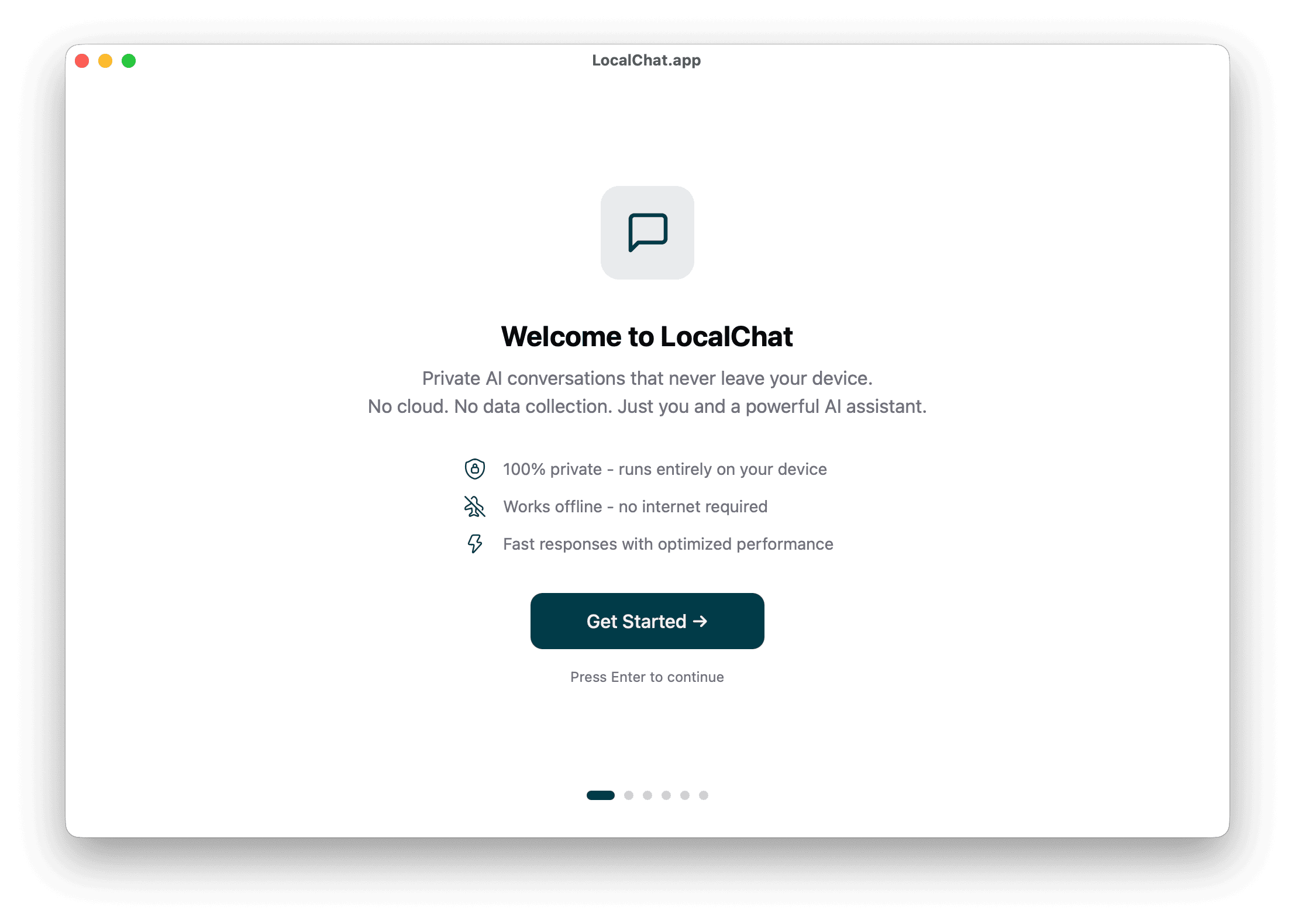
When you first launch LocalChat, you'll see the welcome screen. It introduces the key benefits:
- 100% private - runs entirely on your device
- Works offline - no internet required after setup
- Fast responses with optimized performance
Click Get Started to continue.
Step 2: System check
LocalChat automatically checks your Mac's capabilities to recommend the best AI model for your hardware. The check looks at:
- Memory - How much RAM is available
- Processor - Whether you have Apple Silicon
- GPU - Graphics acceleration support
- Storage - Free disk space
Based on these results, LocalChat recommends which models will run well on your system.
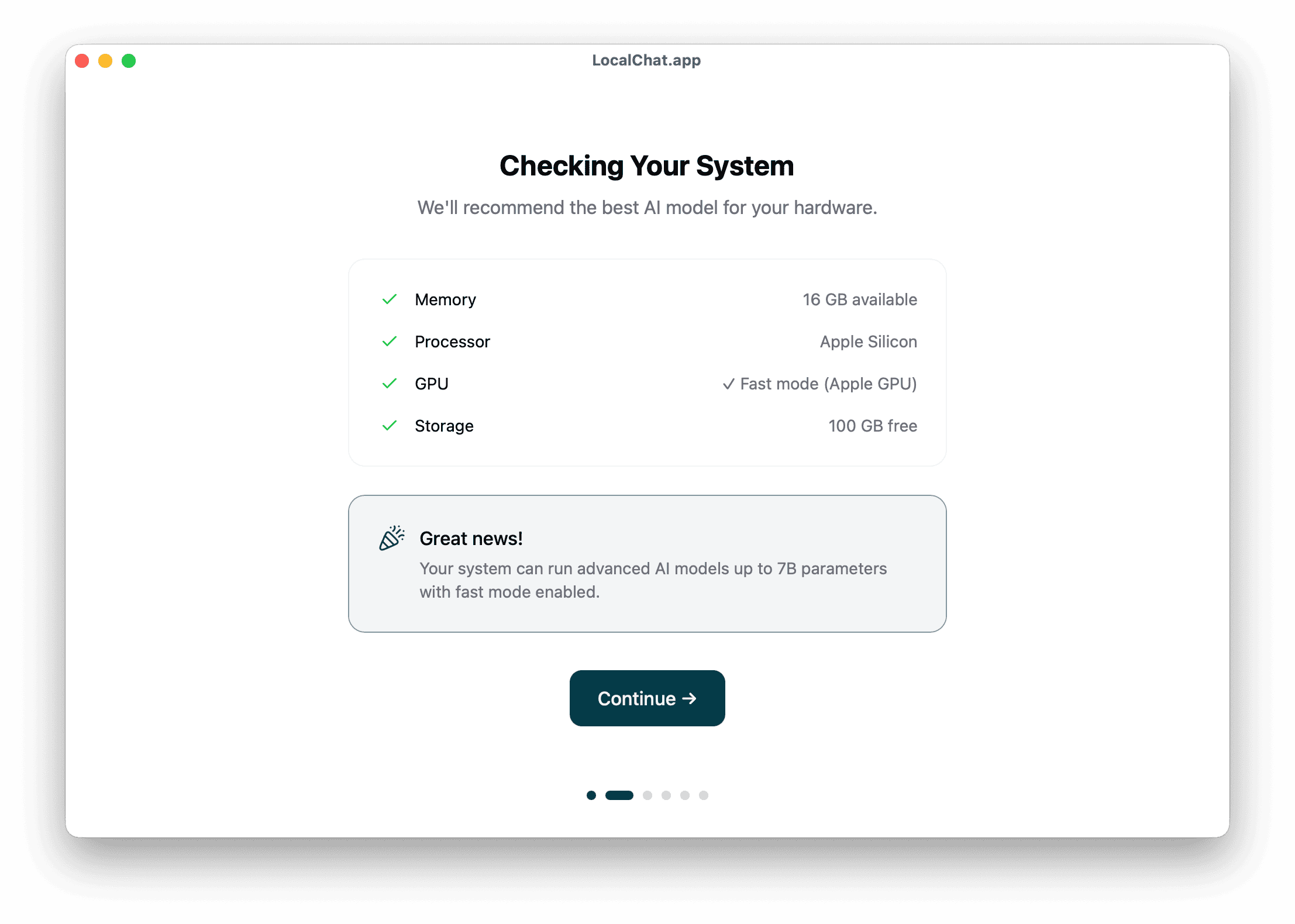
Click Continue after the check completes.
Step 3: Choose a model
Select an AI model based on your needs. LocalChat offers three tiers:
| Model | Best for | Speed | Quality |
|---|---|---|---|
| Lite | Simple tasks, fast responses | Fastest | Basic |
| Standard | Images and code | Fast | Good |
| Advanced | Complex tasks, design-to-code | Slower | Best |
LocalChat highlights the recommended option for your system. You can always download additional models later.
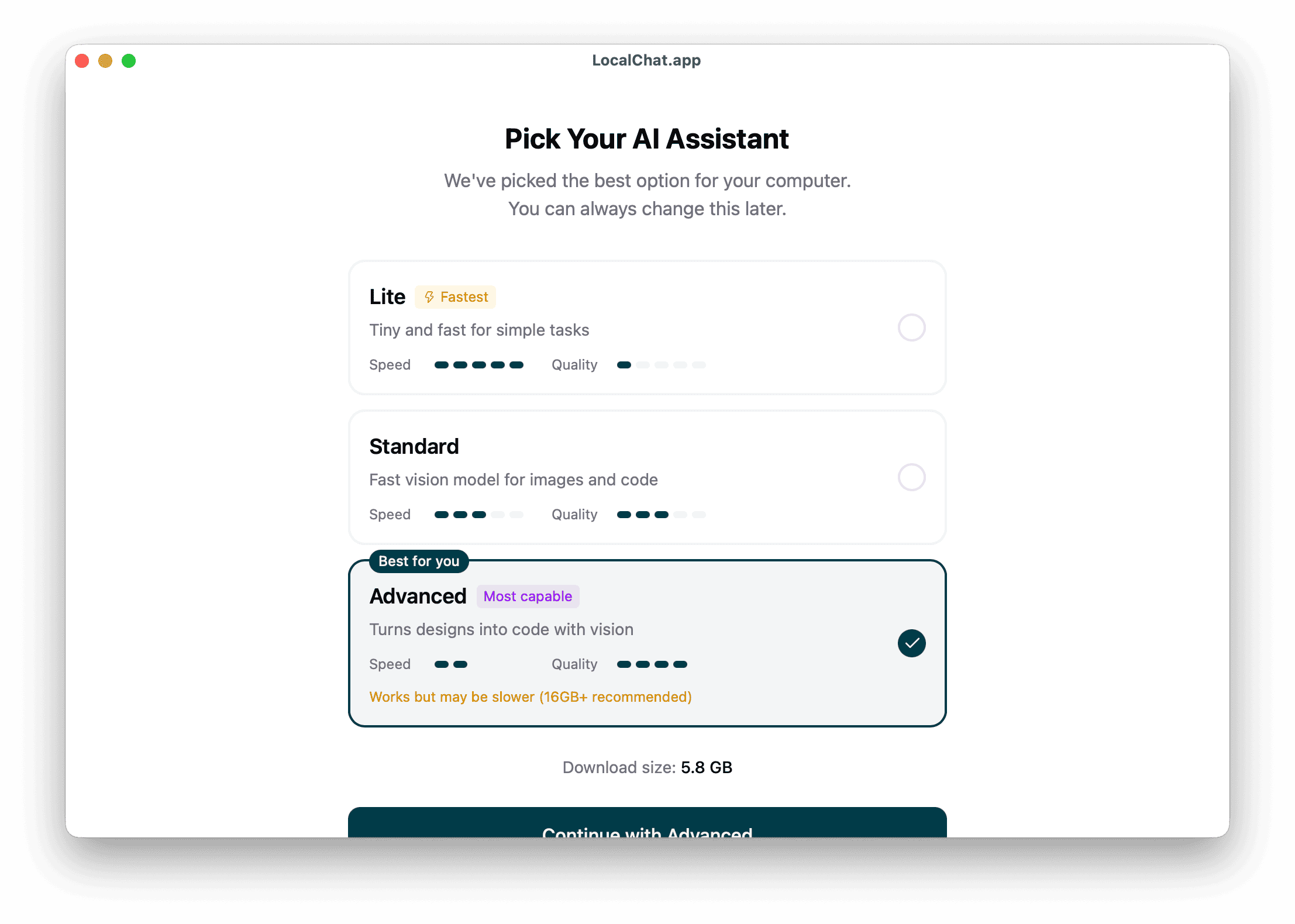
Click the button at the bottom to continue with your selected model.
Step 4: Download the model
The model downloads to your Mac. Download size varies by model (typically 2-6GB). The screen shows:
- Download progress percentage
- Current speed
- Time remaining
Tip: Larger models produce better results but take longer to download and use more memory.
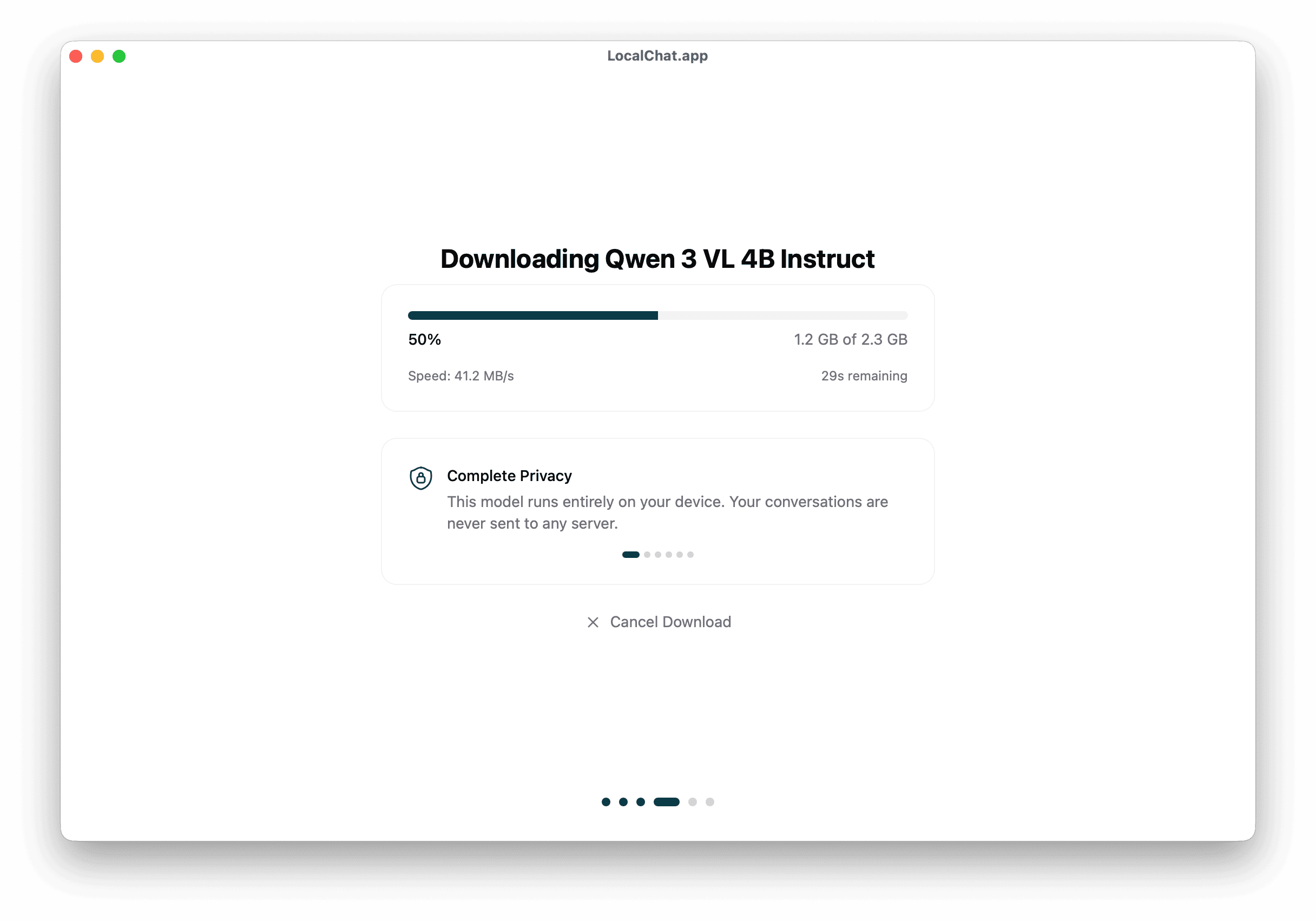
You can cancel the download if needed. The app remembers your progress if you close it.
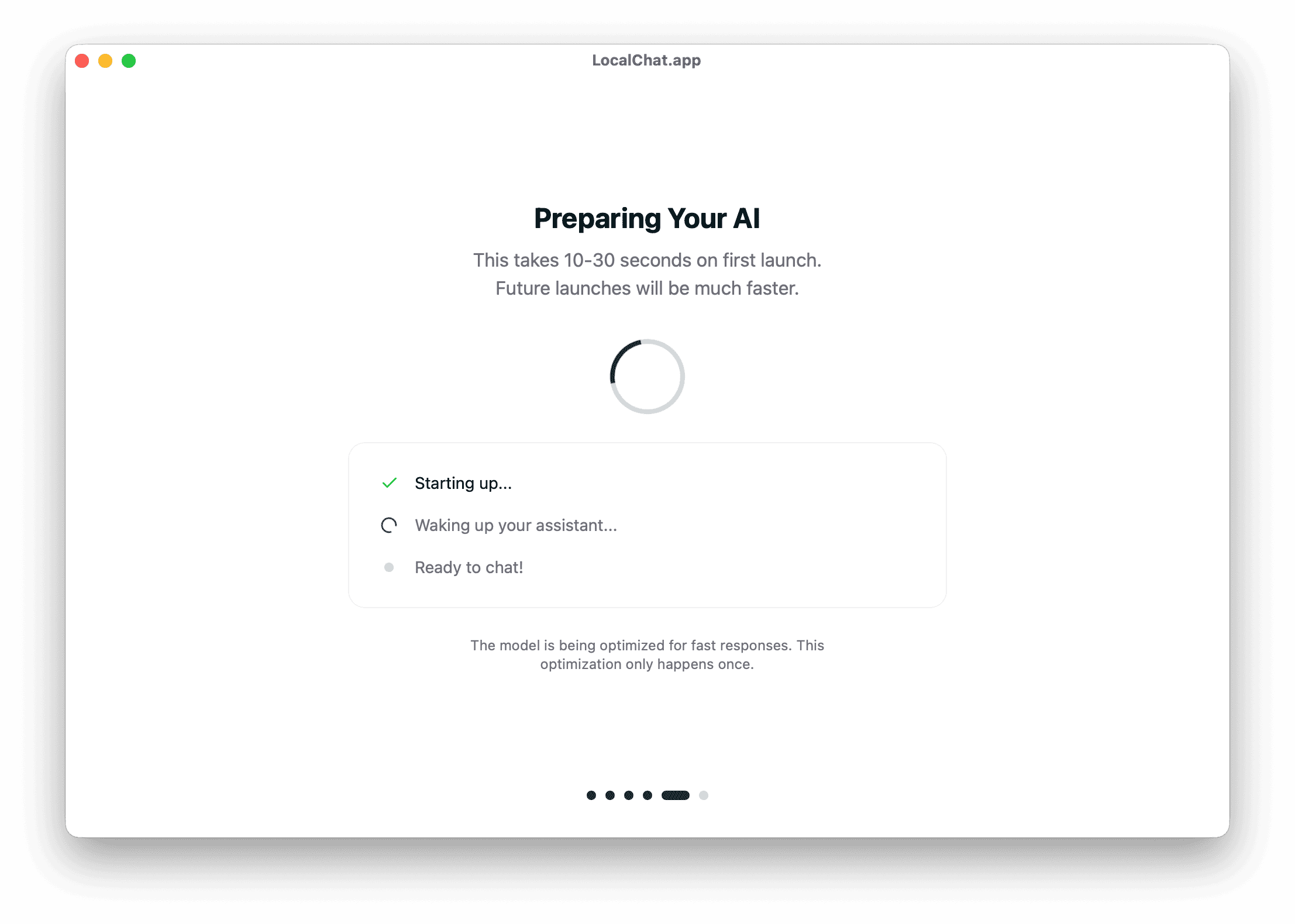
Step 5: Preparing the AI
After the download finishes, LocalChat prepares the model for use. This one-time optimization takes 10-30 seconds on first launch. Future launches are much faster.
The preparation includes:
- Starting up the AI engine
- Loading the model into memory
- Optimizing for your hardware
Step 6: Start chatting
Once setup is complete, you're ready to chat. The screen shows example prompts to help you get started:
- "Explain quantum computing in simple terms"
- "Write a haiku about coding"
- "Help me brainstorm names for my startup"
Click Start Chatting to begin your first conversation.
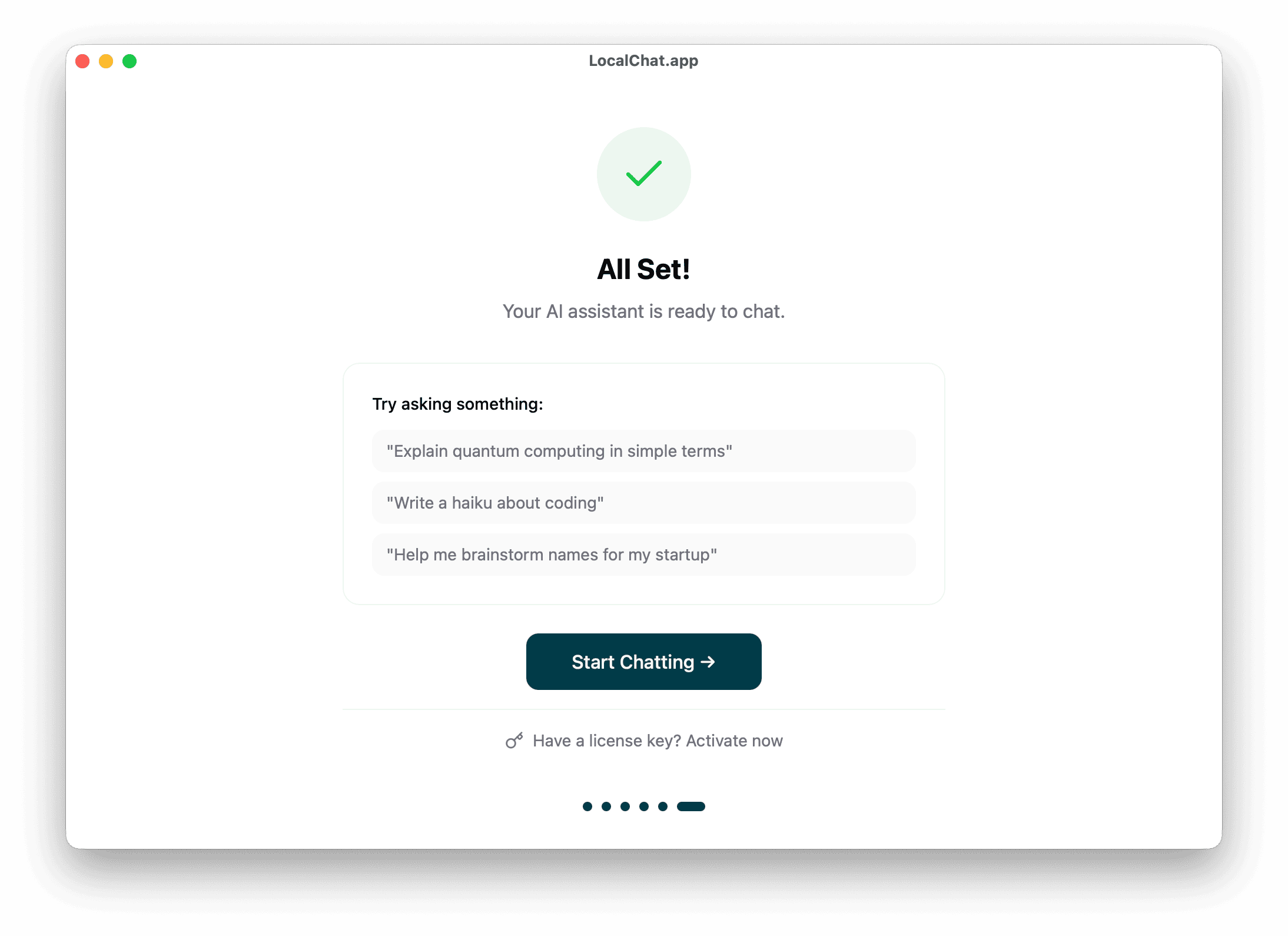
Note: If you have a license key, click "Have a license key? Activate now" at the bottom.
Tips for better results
- Be specific - The more context you provide, the better the response
- Use follow-ups - Continue conversations to refine answers
- Try different models - Each model has different strengths